.png)
Introducing Dot: Your AI Assistant in Quick Announcement Bar
Dot is your AI helper in Quick Announcement Bar, designed to make configuring your announcement bars faster and easier. Dot can guide you through content, style, display, and targeting configurations without having to manually navigate all the settings.
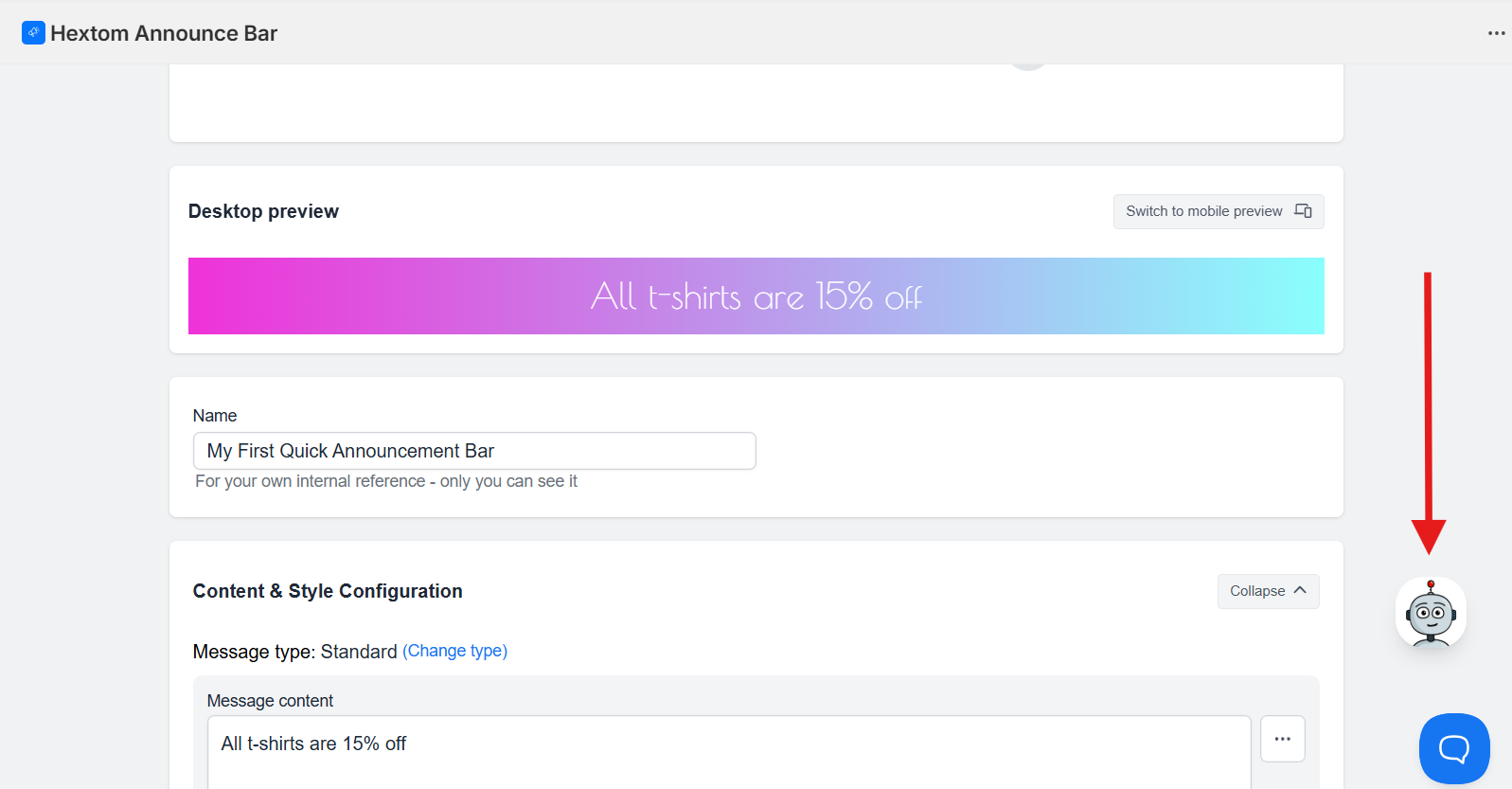
You'll see Dot appear in the lower-right corner after you click Create New Bar, select a message type, and choose a style template.
On this page:
- What Dot Can Do
- Sample Prompts to Try
- Limitations to Keep in Mind
- Things to Keep in Mind
- Tips for Best Results
What Dot Can Do
- Content & style: Edit your message, font, colors, background, and add motion effects.
- Display: Choose bar position (top, bottom, cart drawer), schedule, and visibility.
- Targeting: Pages, customers, devices, markets, visitor locations, or traffic sources.
- General guidance: on using Quick Announcement Bar features
Sample Prompts to Try
Here are some example prompts to get started:
- "How do I add motion effects?"
- "Set the background to be a gradient, left to right, pastel blue to pastel pink"
- "How do I change the size of the text?"
- "Show me how to target the bar to specific pages"
- "Apply this bar to customers in the US market only"
Limitations to Keep in Mind
While Dot is powerful, there are a few things it cannot do yet:
- Dot cannot upload images or custom icons for you.
- Dot cannot publish or delete a bar (for security/safety).
- Dot can only edit the bar you are currently working on.
- Perform recurring schedules (only one start/end window per bar is supported)
- Some page targeting task that require selecting a specific product or collection must be done with the app’s picker in the UI.
Things to Keep in Mind
- Dot uses AI to provide suggestions, so the results may sometimes be inaccurate. Always double-check your bar before publishing.
- Dot is still learning, so its capabilities will improve over time. Check back regularly for new features and enhancements.
Tips for Best Results
- Be as specific as possible with your prompts (e.g., "Change text color to dark purple and make the font bold").
- Use step-by-step instructions for complex tasks (e.g., "Set the bar to appear only on the homepage and collection pages").
- Combine appearance and targeting instructions in one prompt for faster setup.
If you need any assistance or have questions about this feature, feel free to reach us at help@hextom.com.