.png)
How do I place the Quick Announcement bar using Element Adjacent?
The Element Adjacent display position allows you to place the bar next to a specific element on your page, without editing your theme code.
Instead of choosing a general position like "top" or "bottom," this option lets you target any element on your page and insert the bar either before or after it. This makes it useful for tricky placements, such as inside cart drawers or areas created by third-party apps.
Note:
This is an advanced option that requires some technical knowledge. We recommend this for users who are comfortable working with HTML elements and CSS selectors.
How to Set Up the Element Adjacent Position
- Under the Display Configuration section, select Element adjacent – inserts the bar next to a specified element (advanced).

- In the Query string to find the element field, enter the CSS selector of the element you want to target.

For this example, we used the browser DevTools (Inspect Element) to locate the query string and fetched the cart drawer’s class element.
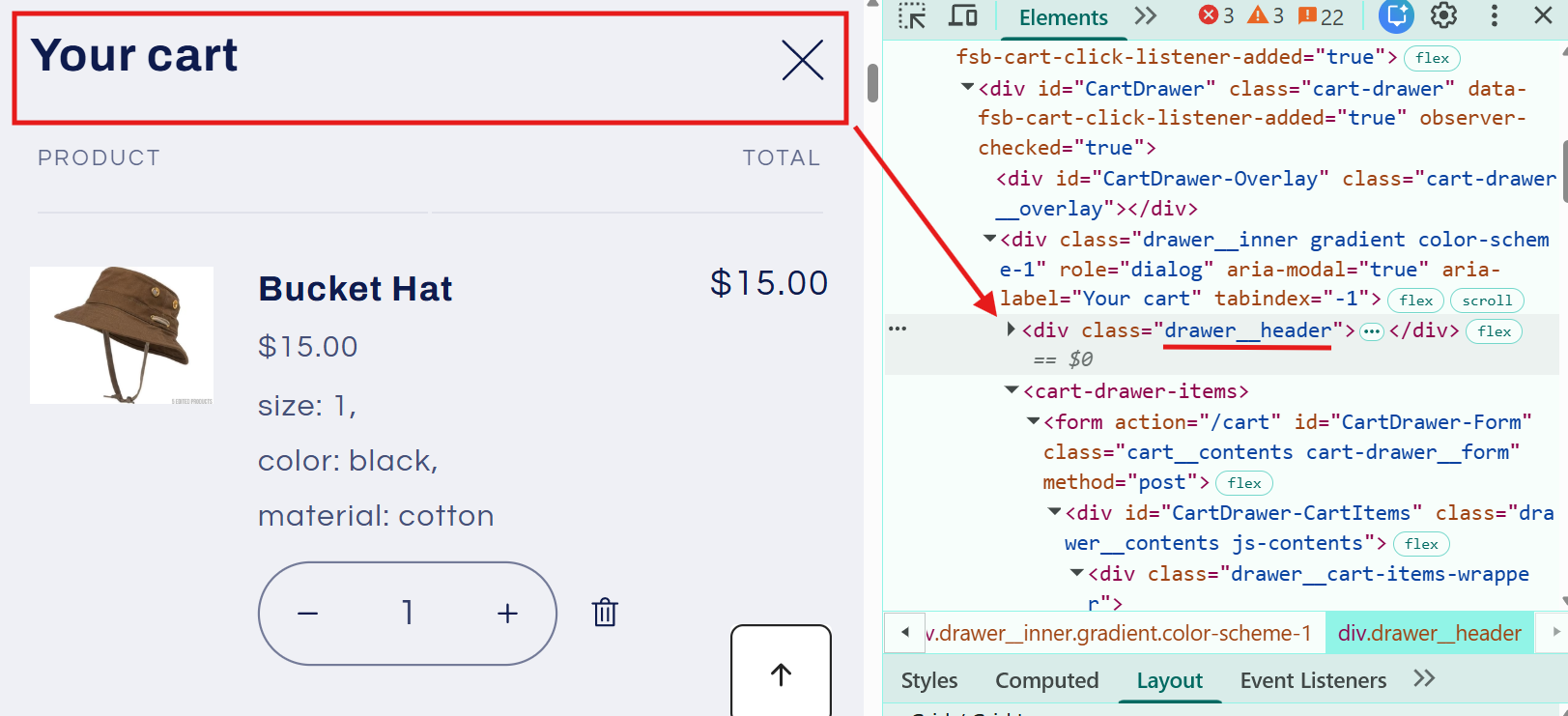
This should result in the display of the quick announcement bar at the top of the cart drawer.

- In the Insertion position dropdown, choose where the bar should appear in relation to the element:
- beforebegin — inserts the bar just before the element
- afterbegin — inserts the bar just inside the element, before its first child
- beforeend — inserts the bar just inside the element, after its last child
- afterend — inserts the bar just after the element

Finding Elements
To target an element on your page, you'll need a query string — this is the same format used by document.querySelector() in JavaScript. Here are the most common ways to find an element:
Find by Class
Class names are identified with a period (. ) at the beginning.
.cart-drawer
If the element has multiple classes, chain them together with periods and no spaces:
.link.product__view-details.animate-arrow
Find by ID
ID names are identified with a hash (# ) at the beginning.
#MainContent
Tip:
IDs are generally unique to a page, so finding by ID is the most reliable method. Use it whenever possible to keep things simple.
Find by Tag Name
Tag names have no identifier — just use the tag name directly. This will target the first matching tag on the page.
form
Mix and Match
You can combine selectors to be more precise:
form.cart-form
This targets a <form> tag that also has the class cart-form .
If you have any further questions, please feel free to reach out to us at help@hextom.com